The Individual/Resident Centered Programs is an optional module in the management software and can be accessed from the resident maintenance screen. This module helps to create a more individualized set of assessments for each individual/resident in the CareTracker system. Users are able to create an assessment that will allow staff on the floor to see important series specific information regarding the individual/resident's needs and helpful tips to complete the program. Each Resident Centered Program can be scheduled based on the individual/resident that the program was created for.
The Manage Individual/Resident Programs window contains all series that are eligible to assign an individual/resident. These programs are organized in alphabetical order by category and series.
There are three areas of programs located on the Mange Resident Programs screen. They include: Active Programs, Past Programs, and the Program Library.
Active Programs are programs that are currently assigned to the individual/resident and are active for staff to document based on the start and end date of the program. The Past Programs include any program that has been assigned to an individual/resident in the past but is no longer active. This area may include multiple objectives of one specific goal that has been updated over time. The Program Library is a place where new programs can be added to an individual/resident. Each program can be created to communicate the resident's unique goals or program.
Individual/Resident Centered Program Creation
To add new programs, complete the following steps:
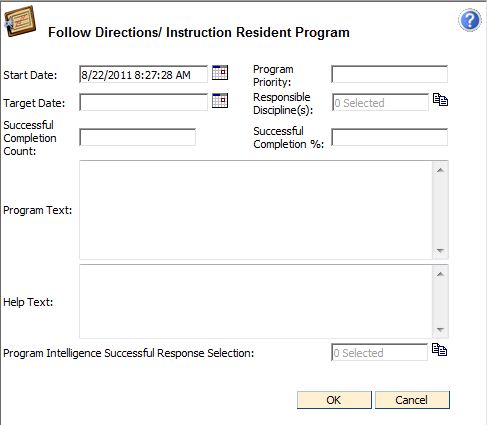
Start Date - Displays next effective date for the individual/resident program. This will also determine the schedule start date if the user chooses to schedule the program.
Target Date - This is the date when the program will no longer be active. When the target date is reached, the program is moved from the Active to the Past Programs list. After the designated number of days (established on the "Configure Program Series Module" screen in Facility Information), the program will be moved from Past Programs to the Program Library (Available Programs). This is a required field for Program Intelligence.
Program Priority - This user-defined information can be used as a filter selection under "Program Order" when running the Individual Plan Report, which is located on the CareTracker Report Tab under Resident Reports. Either numbers or letters can be entered in this field.
Responsible Discipline - Choose a staff category from the drop down list to designate which staff categories are responsible for this individual/resident program. Responsible Discipline is a filter selection under "Program Order" when running the Individual Plan Report which is located on the CareTracker Report tab under Resident Reports.
Successful Completion Count: To track a goal through Program Intelligence you can utilize this field to establish the number of times the individual/resident must complete the goal successfully.
Successful Completion Percent: To track a goal through Program Intelligence you can utilize this field to establish the percent of time the individual/resident must complete the goal successfully. This field can be used in conjunction with the successful completion count if an individual/resident needs to be successful a certain percent of the time within a certain number of attempted times.
Note: to track a goal through Program Intelligence the successful completion count and/or percent must be entered.
Program Text - Detailed description of the individual/resident program. This text will be displayed on the kiosk when the series is being documented. It will also be displayed on the Resident Program Summary Report. The text can be as long as necessary.
Help Text - This help text is individual/resident specific help text that will appear on the kiosk when the user clicks the red help button next to the program text.
Program Intelligence Successful Response Selection- the Program Intelligence Successful Response Selection allows the user to specify what responses are considered successful for the specific goal and individual/resident. The list of responses pulls directly from the series that the program is associated with. Responses are generated based on their question order, and choice order in the series. Only the first and second question choices in a series of questions will be included. This field is a required Program Intelligence field.
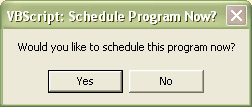
If you answer Yes, the Individual/Resident Program Scheduling Wizard will walk you through adding a schedule for this individual/resident specific program.
Note: If the user selects No to the above prompt, the individual/resident program will be saved, the series will be available on the kiosk for documentation, but the button will not be yellow.
To create a new individual/resident program series from the Manage Resident Programs screen, complete the following steps:
If you do not see an appropriate program for your individual/resident in the Program Library you can create a new series by tapping on Create New Program Series under the common tasks on the left hand side of the screen. This will add a new series to the Program Series Library and it will be available for use for other individuals/residents.
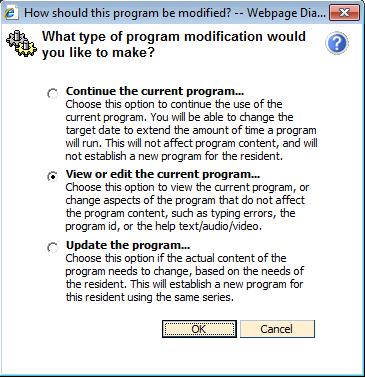
To edit, view, or update an Individual/Resident Program, complete the following steps:

Note Pad: Choose the notepad to add a progress note about the program.
Scheduling Calendar: Click the scheduling icon to edit or create a new schedule for the series. See Individual/Resident Scheduling Wizard for more information on adding schedules.
Gears: Select the gears to update, continue, or edit the Individual/Resident Program.