
Question Text - Type in the question to be viewed on the kiosk.
Type - Following are the available question types:
ADL Style: ADL Style question types will be pre-filled. The question type allows for one question and only 6 choices. The ADL question type is unique because each choice has a picture associated with the choice as shown below.
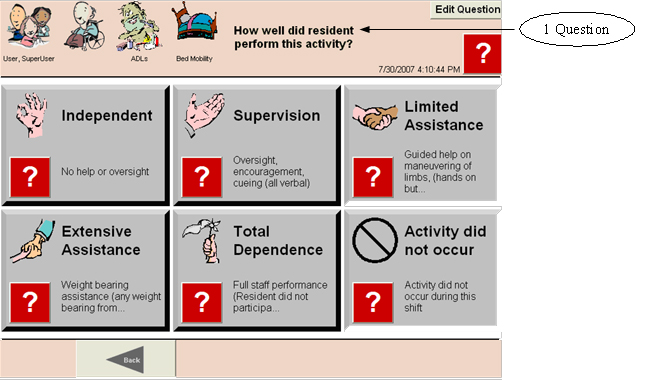
Yes/No Style: Yes/No Style question types will pre-filled. The user may enter up to 10 questions. All choices will be pre-filled with ‘yes’ and ‘no’.
Multiple Choice Style: Multiple choice questions allow the user to enter up to 10 questions and 10 choices for each question. Choose the multiple choice question type if only one choice could be the answer to the question.
Select All That Apply: Select All That Apply questions allow the user to enter up to 10 questions and 10 choices for each question. Choose the Select All That Apply question type if multiple choices could be the answer to the question. **All choices will jump to the same follow-up series or question if applied.
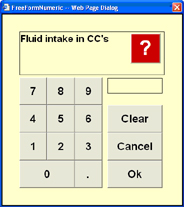
Free Form Numeric: Free Form Numeric question types allow a user to enter a free form number as an answer to a question.
Range: Add an acceptable low and high numeric range for any free form numeric question.
Appropriate Actions and Follow-ups may be applied for any low value or high value within the range. For example, users may establish a Range between 0 and 200.
If the users document a number between 0 and 100, the follow-up may be different than if the users document a number between 101 and 200.
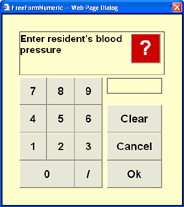
Free Form Blood Pressure: The Free Form Blood Pressure question type allows users to document blood pressure.
Free Form Date: Free form date looks similar to Free Form Blood Pressure allowing users to document dates. **The Free Form date style does not validate all date formats.
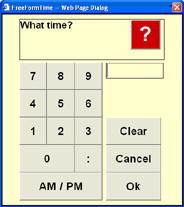
Free Form Time: Free form time allows users to enter a time including AM or PM. **The Free Form time styles does not validate all time formats.
Free Form Text: The free form text question style allows users to enter text from the kiosk using a form that looks like a keyboard. **Please note there is a character limit of 50 characters.
Free Form Long Text: The free form long text question style allows users to enter text using a form that looks like a keyboard. The number of characters is unlimited.
Date/Time: The date/time allows users to pick a date and a time in 15 minute increments as a choice. Management may define the dates available by selecting one of four choices:
Date/Time Range: The date/time range question type has same format as the Date/Time, and also allows users to pick a beginning and ending date and time.
Staff Name Selection List: The Staff Name Selection List allows users to pick staff names as choices.
Resident Name Selection List:
As Choices: The Resident Name Selection List allows users to pick resident names as choices. The user may use this question style as many times
As Observations: All observations of the series string will be attached to each Resident name selected.
Image Selection: The image style question type allows users to browse for a picture. The picture will be available in image style reports.
Reference Id - Entries in this field can be used as a cross-reference to the MDS form. Also may be used to display specific information on reports, for example, ADL Reports and Depression Indicator Count Report.
Order - This is the order in which the question will appear on the kiosk.
Mandatory - Did not occur questions should have the Mandatory check box marked. Example: Behavioral symptoms - If user has certain behaviors selected and then These behaviors did not occur, is selected, then all other choices should be de-selected.
To use this feature, on the Add or Edit a Question window, you must setup the did not occur question as Mandatory. There can only be 1 mandatory question in a series. On the kiosk, when clicking on the mandatory question, it will de-select any other questions and vice versa.
Range - Add an acceptable low and high numeric range for any free form numeric question.
Choice Text - Enter text as desired to describe each choice.
Order - Order number in which the choice will appear on the kiosk.
Ref Id - This number refers to the MDS form.
Graph Weight - Assign a graph weight to each choice. On ADL type choices, the graph weights correspond to numbers on choices on the MDS form.
Action - Jump to a Function
There is an option on choices to "jump to" a pre-determined function.
For example, there are instances where a facility may have a large number of residents who leave the facility several times in the course of a week due to certain conditions. When this happens, it is impractical to keep adding status records for the resident. Now a Choice can be set up to jump to a Function, i.e., "resident out of facility." This function will delete all schedule records for the resident for the current shift. This way the resident will not inaccurately affect the compliance level.
To jump to a function
Select a function from the drop down list, then click Set Function. A prompt will appear asking if you want to apply this selection to all choices. To apply this selection to all choices for the current question, click Yes to the prompt. Click No to apply the function to the selected choice only.
To add a follow up question or series
Note: only those with Administrative user rights will be able to add or edit Questions on the Kiosk.
Multiple
Languages 
There are now "globes" that can be selected when multiple language sets are available (as a custom program, not available by default). These globes appear on the Category/Series/Question Maintenance. For Kiosk help, click the "gears" to access multiple language setup. If a Multiple Language set (for example, Spanish) is available, the user can select this language per staff (on the Staff maintenance screen) so that certain staff see "Spanish" and others see the default of "English".