
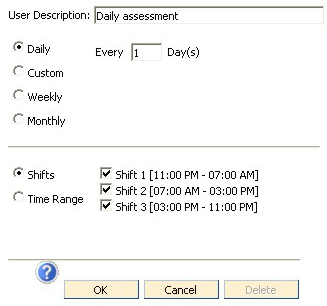
This is a Daily Assessment time. If the series should be scheduled every day, choose the Daily radio button as shown above, choosing Every 1 Days. If the series should be scheduled every other day, then choose Daily Every 2 Days.
In the Shifts section of the window, mark the check box beside each shift the assessment should be scheduled.
Finally choose from the bottom section of the window if the schedule is to have No End Date or if it should end after a specific number of cycles.
Note: Editing an Assessment Time will affect ALL assessment groups using that Assessment Time, not just the one the user is currently working with.
See also Custom Assessment Time