
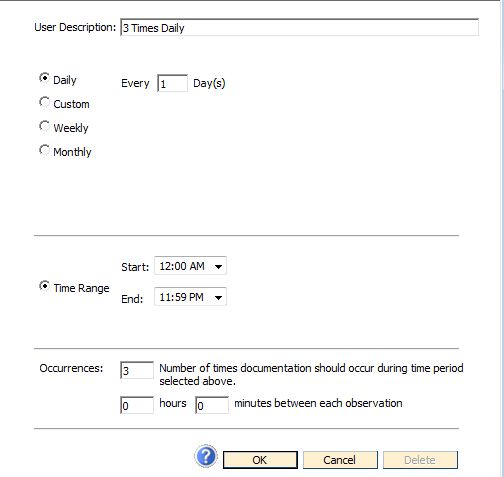
This is a Daily Assessment time for Frequency Scheduling. If the series should be scheduled every day, choose the Daily radio button as shown above, choosing Every 1 Days. If the series should be scheduled every other day, then choose Daily Every 2 Days.
In the Time Range section of the window, select when the assessment time should start and end.
The Occurrences section of the window allows you to state the number of times documentation should occur during the time period you chose. To specify the amount of time that should lapse between each observation, you can enter the total number of hours or minutes that you want to pass before documentation can occur again.
Note: Editing an Assessment Time will affect ALL assessment groups using that Assessment Time, not just the one the user is currently working with.
See also Custom Assessment Time for Frequency Scheduling.