
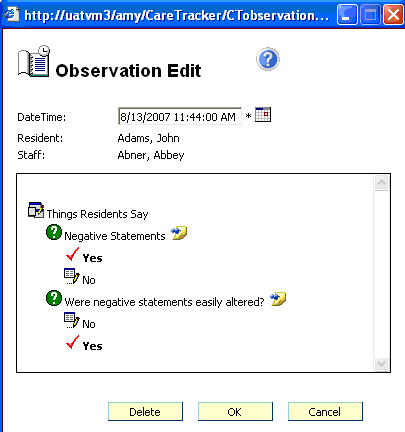
Only the date and time can be edited on an observation. To edit date or time, click the calendar symbol beside the observation date. Select the desired date and time on the calendar, then click OK to save. A comment window will display where you must enter a reason for changing the date/time on the observation.
To Delete an Observation
From the Edit Observation window, click the Delete button. A comment window will display where you must enter a reason for deleting the observation.
If the Allow Notes feature is enabled for a series, a notes icon will appear by the question text. A user may click on the note icon to add a note regarding the observation.
If the Allow Notes feature is enabled for a series, a notes icon will appear by the question text. A user may click on the note icon to delete a note. After choosing the delete option a user is forced to enter a comment regarding the deletion.
If the Allow Notes feature is enabled for a series, a notes icon will appear by the question text. If a note is already attached to an observation, the user may choose to edit the note. However, after clicking OK, the user is forced to enter a comment regarding the observation change. The history of both notes maybe viewed using the Observation Change/Delete Report.
Change/Delete Report
The Change/Delete Report (under CareTracker System Setup Reports) will show any observations that have been changed or deleted for the date range selected.