How to Close an MDS Assessment
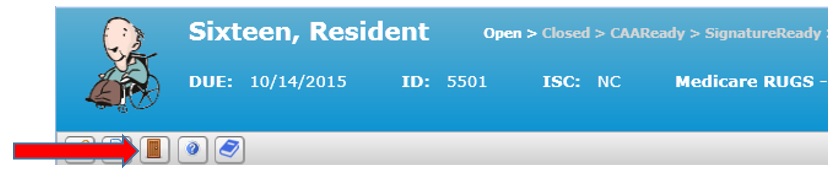
A MDS Assessment can be closed two ways; A.) Use the Common Task Close Assessments link on the MDS browse window; or B.) Click on the Move to Close MDS icon on the tool bar after committing changes on a working MDS.
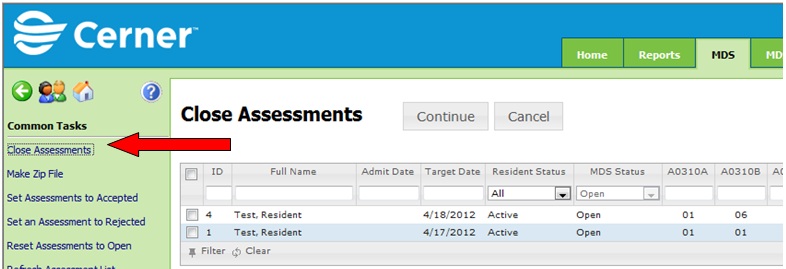
Common Task Close Assessments link
1. Click on the MDS tab.
2. Click on Work with MDS Assessments. The MDS Assessment browse window appears.
3. Click on Close Assessments on the left hand side under Common Tasks. The Close Assessments window appears. Only assessments that have an open status will appear in the window for selection.
4. Check the checkbox in the first column for each MDS Assessment to be closed.
5. Click Continue.
Move to Close MDS icon on the tool bar
1. Click on the MDS tab
2. Click on Work with MDS Assessments. The MDS Assessment browse window appears.
3. Double click on the MDS to be closed, making sure the MDS Assessments browse is set to MDS Status or All or Open. The MDS window appears
4. Click on the Move to Close icon on the tool bar.
5. Click ok to close the Master Copy of the MDS.