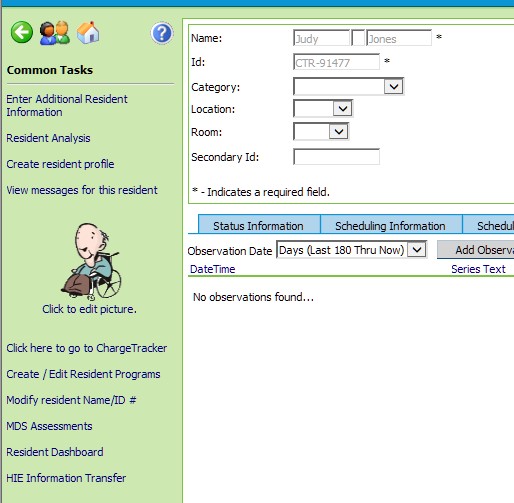
1. From MDS tab, select Work with Residents. The Resident Maintenance browse window appears.
2. On the Resident Maintenance browse window, double-click to select the resident. The resident maintenance record appears.
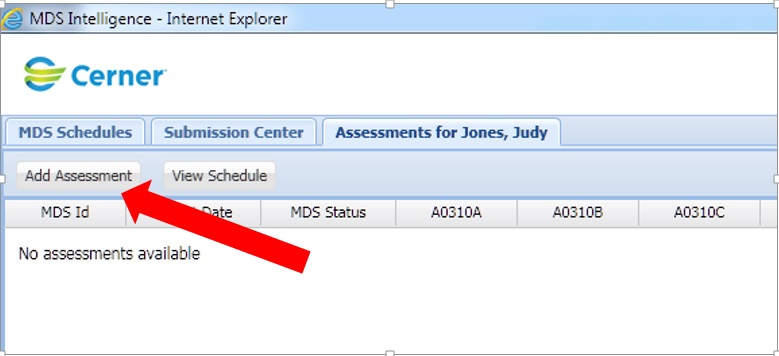
3. Under Common Tasks on the left hand side, click the MDS Assessments link. The MDS Scheduling View window will appear, and will be opened to the “Assessments for ______” tab, displaying the history of the resident’s MDSs.
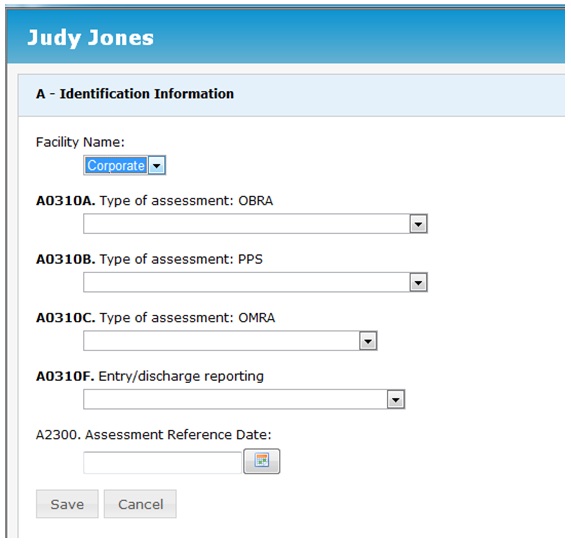
4. To add a new MDS, click Add Assessment. A box will pop up with required items to determine the Item Set Code (ISC). Select reasons for assessment and target date.
i. If creating an entry record the date field requires an entry date
ii. If creating a discharge, the date field requires a discharge date
iii. For all other instances, the date field requires an ARD
5. Select Save to open the MDS working copy or Cancel if you do not wish to create the MDS after all.
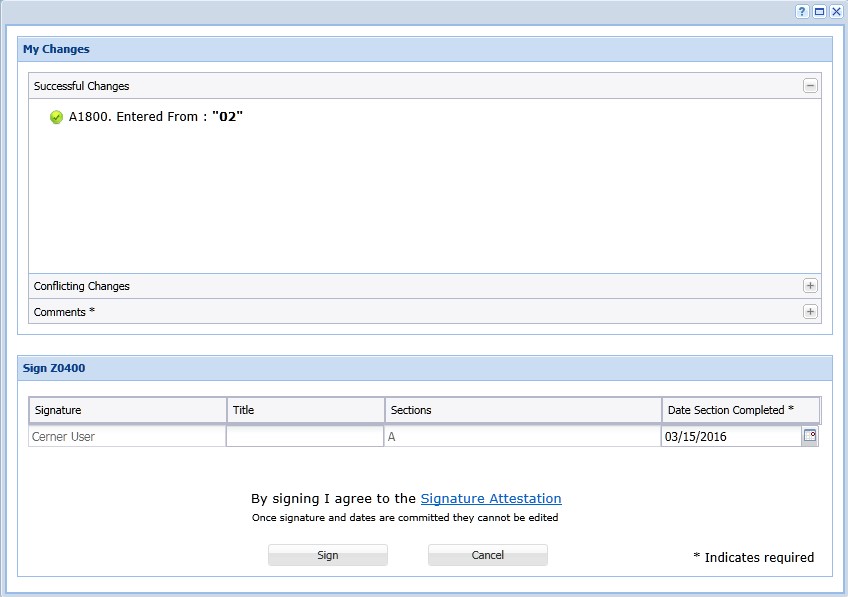
6. Before the MDS is created, you will see a My Changes window appear. You will need to sign for the Item Set Code fields in Section A that you just entered, as well as imported fields that will be imported upon MDS creation. Click Sign to sign for the fields and to create the MDS.