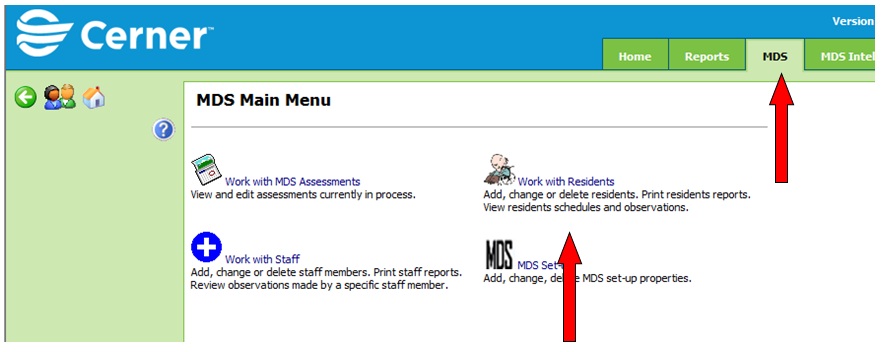
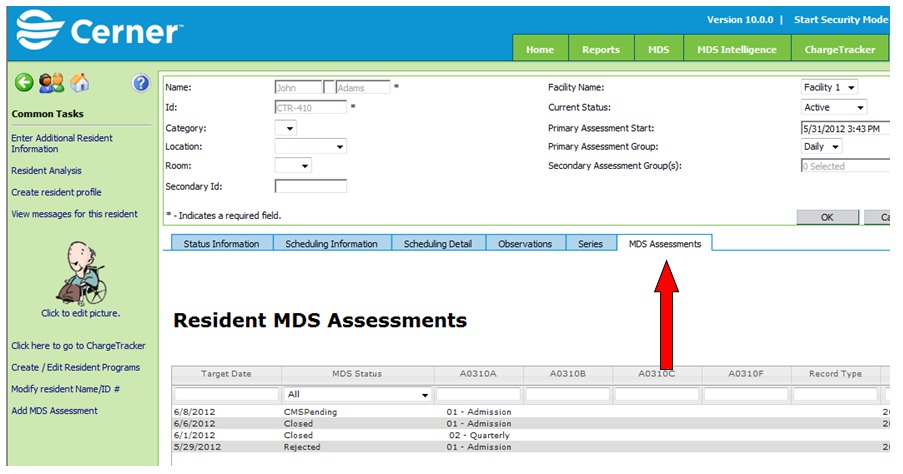
There are two ways to view MDS assessments: A.) From the Work with MDS Assessments link or; B.) From the Work with Residents link.
A. View MDS Assessments from the Work with MDS Assessments link
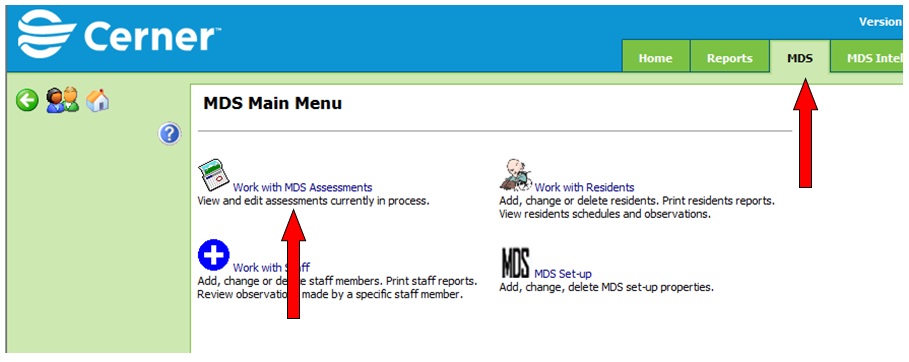
1. Click on the MDS tab
2. Click on Work with MDS Assessments. The MDS Assessment browse window appears.
3. Double click on the MDS assessment you wish to view. The resident MDS Assessment window appears.
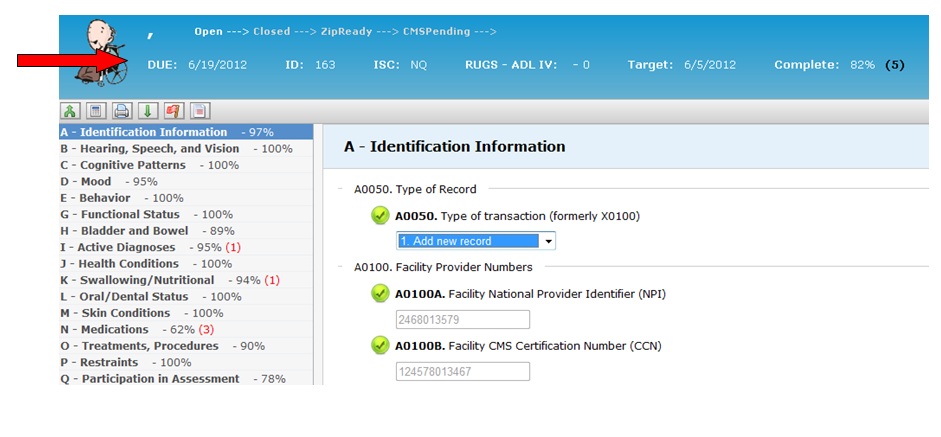
When viewing and working with an MDS two information header lines are presents as well as an icon based tool bar.

The first header row is located to the right of the resident name on the top of the MDS window and indicates the progression and status of the MDS. The current status of the MDS is listed in white text while other statuses are grey text. In the above example the current status is CMS Pending. See below for status definitions.
• Open
• Created MDS with reasons for assessment, data entry not complete
• Automatic status assigned once reasons for assessment completed
• Members of interdisciplinary team can each create working copies to complete their sections of the MDS
• Closed
• MDS nurse can move the MDS to this status when it is determined it is time to finish this assessment, run validation and sign assessment
• All working copies must be committed to the master before status can be changed
• From read-only version select Move to Closed from the tool bar
• Only MDS Coordinator can access MDS at this stage – only one working copy available so any changes made by MDS nurse would not be over-written by another user.
• CAA Ready
• Can promote MDS through the Report Card to CAA Ready status on Comprehensives, without signing Z0500. Can sign Z0500 at a later time.
• Section V editable for CAAs by other disciplines.
• V0200A CAA Results editable except for column indicating whether triggered or not
•Once CAAs are all addressed and have turned green, V0200B and V0200C will be able to be signed when the Sign icon is clicked from the MDS Assessment toolbar
• Signature Ready
• Comprehensives: Z0500, V0200B, and V0200C signatures available to be entered
• Zip Ready
• Non-comprehensives: when Z0500 signed, converts to Zip Ready status
• Comprehensives: when V0200C signed, converts to this status
• Create zip through Common Task from Master Grid
• CMS Pending
• xml saved; zip file has been created;
• Automatic when zip created
The second header row contains general information about the MDS. Field s and definitions include:
• Due Date – Z0500 -Based on target date, when does MDS need to be submitted to CMS
• ID-Auto-generated identification number for the MDS
• ISC-Item Set Code applied to the MDS based on reason for assessment
• RUGS-ADL IV-Resource Utilization Group calculation complied based on MDS data entry
• Target-This date represents one of the following: admission date for entry record, discharge date for discharge, ARD for all other assessments
• Complete-Indicates the overall percentage of MDS completion as well as number of errors
B. View MDS Assessments from the Work with Residents link
1. Click on the MDS tab
2. Click on Work with Residents. The Resident Maintenance browse window appears.
3. Double click on the resident record for the assessment you wish to view. The resident maintenance window appears.
4. Click on the MDS Tab. The resident MDS Assessment browse window appears.
5. Double click on the MDS assessment you wish to view. The resident MDS Assessment window appears.