1. Click on the MDS tab
2. Click on Work with MDS Assessments. The MDS Assessment browse window appears.
3. Double click on the open MDS assessment you wish to modify. The resident MDS Assessment window appears.
4. Click on the Edit MDS – Open button on the tool bar. A Working Copy is created and field entries and modifications may be created.
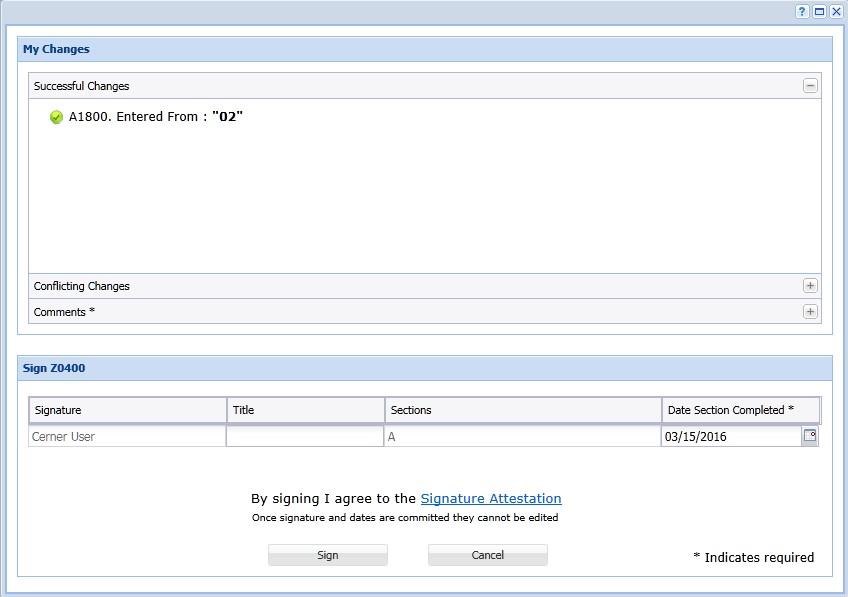
5. Click the Commit Working Copy button on the tool bar. A window appears that says, “My Changes.” The window will display any changes made in the Successful Changes section. The Conflicting Changes section will automatically open if you have entered any data that conflicts with what a previous user has already entered. You can click the Comments section to add any additional comments about editing the MDS.
6. According to the RAI Manual, you need to sign off on any changes that you make in the MDS. This window will be where you’ll place your signature in Z0400 for the sections you edited. Your username will automatically be populated in the Signature line, along with the sections that you edited in Z0400 of the MDS. After you have reviewed the information and made sure the signature date listed is what you want, click Sign.